
Use location review to confirm which client site an invoice line belongs to. Correct location relationships support service inventory, spend reporting, and contract analysis.
VIDEO Coming Soon: 90-second “Resolve an Unmatched Location.”
How automatic address matching works
PAGassist compares street, city, state, and ZIP code with locations for the same client company. All four components are required to build the matching key.
The comparison lowercases the address, removes punctuation, and normalizes repeated whitespace. It compares the resulting keys for equality. Fuzzy matching and automatic equivalence between street abbreviations or postal formats are not documented.
For example, a change in capitalization may normalize successfully. Do not assume “Street” and “St” are equivalent merely because they describe the same site.
Understand the status
The field location_match_status drives the location-resolution state used by the Unverified Locations panel.
|
Status |
Meaning and review action |
|---|---|
|
Auto Matched — auto_matched |
A normalized address matched an existing client location. Confirm it is the correct site. |
|
Created New — created_new |
A new location was created and linked for a complete unmatched address. Check its accuracy and look for duplicates. Automatic creation is not analyst verification. |
|
Unresolved — unresolved |
The address is incomplete or has not resolved to a client location. Investigate the entry and correct or select the location. |
|
Analyst Matched — analyst_matched |
An analyst explicitly selected the location. That selection takes precedence over automatic matching on later saves. |
|
Dismissed — dismissed |
An analyst marked an unverified address as intentional. The line remains unmatched and the panel entry is dismissed. |
|
Pending — pending |
A newly inserted line has not completed location resolution. Report it if the state persists after processing. |
The reference gives overlapping explanations for complete unmatched addresses and automatic creation. Use the actual status shown; the exact creation eligibility still needs implementation confirmation.
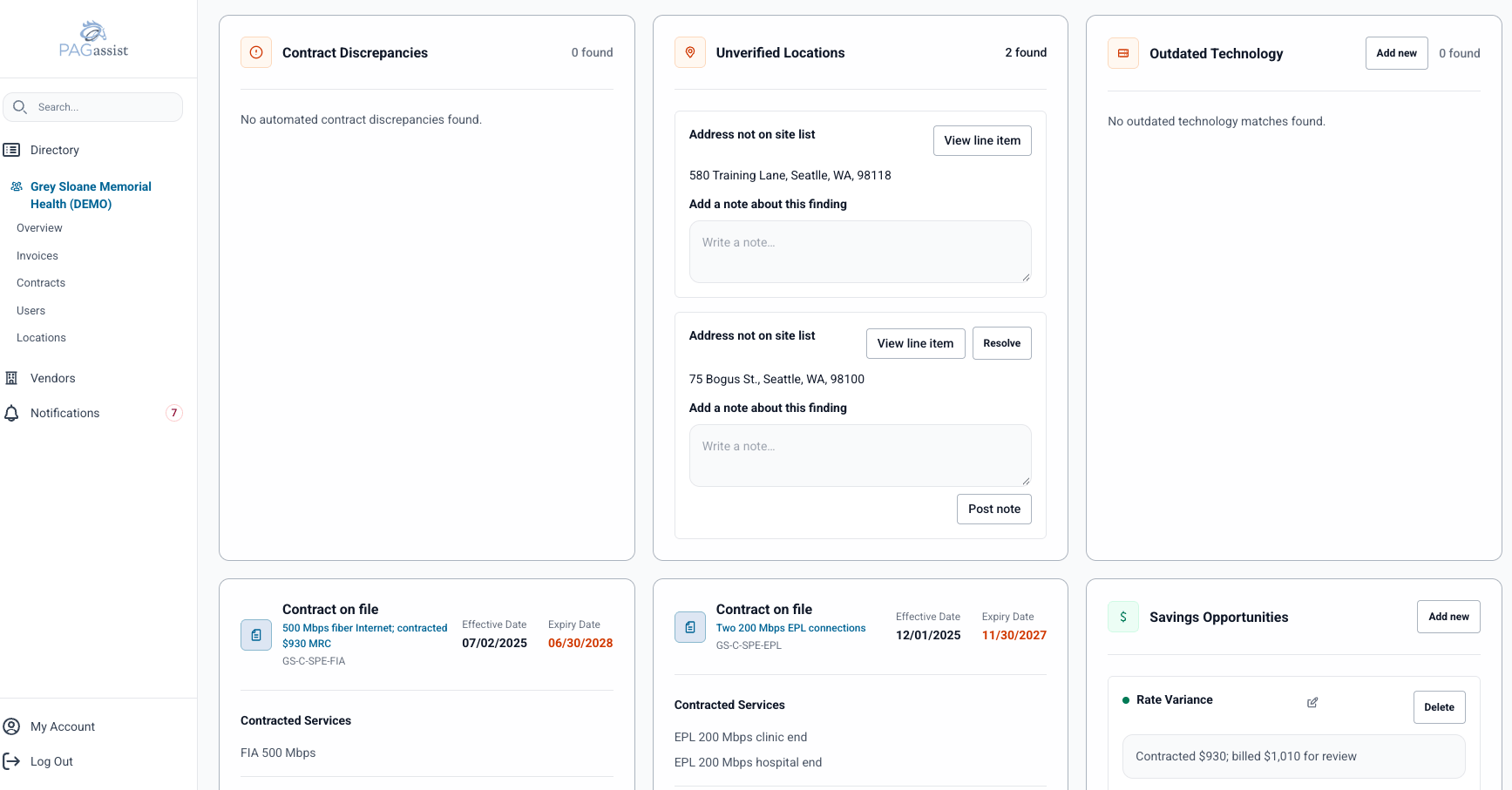
Resolve an entry
- Compare the service address with the original invoice and the client’s known sites.
- Check for missing or incorrect street, city, state, or ZIP values.
- Use the supported location-resolution controls to select the correct existing location or create a valid location when needed.
- Confirm the resulting association and check for a duplicate location.
- Record supporting context when the address or service relationship needs explanation.
Never force a location match simply to remove a warning.
Dismiss an entry only when the unresolved address is intentional and you can explain why. Dismissal does not confirm the billed service’s location or contract coverage.
For manual location creation and CSV import instructions, use the existing Add Locations article.
Locations and flags are separate
An entry can appear in Unverified Locations without a row badge. The panel reads the location status, while the row’s off-location highlight depends on an off_location finding. See Troubleshoot Invoice Review for the reported display gap.
A resolved location can still have Off-contract location if eligible contracts do not cover it. See Understand Invoice Flags.
Return to Review & Approve an Invoice after location review.
Documentation updated: October 14, 2026. Behavior reference: Ben’s Auto-Match Reference — Invoice Review, describing production as of October 11, 2026. This documents the reference rather than an independent production test. Investigation steps are recommended analyst practice. Open behavior questions appear in Troubleshoot Invoice Review.